
Printing Knowledge: Differences Between Images and Graphics, Resolution, and Color Modes
1. Differences Between Bitmap Images and Vector Graphics
Computer graphics can be divided into two major categories: bitmap images and vector graphics. Understanding their characteristics and differences helps in creating, importing, editing, and applying digital images. There is no absolute superiority between bitmap images and vector graphics; they simply serve different purposes. Therefore, combining the strengths of both is the optimal approach to handling digital images.
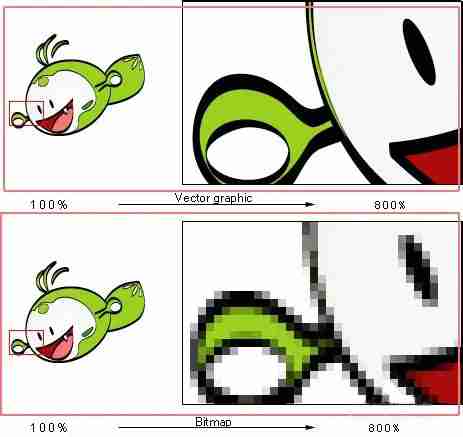
Bitmap Images
Bitmap images, also known as raster images, are commonly used in software like Photoshop and other graphic editing tools. They are composed of pixels, with each pixel assigned a specific position and color value. When working with bitmap images, you are editing individual pixels rather than objects or shapes.
Vector Graphics
Vector graphics consist of lines and curves defined by mathematical vectors. Software like Adobe Illustrator, CorelDraw, and CAD are based on vector graphics for design. Vector graphics are described using geometric properties of outlines, which are positioned and filled with colors. Adjusting their position, scaling, or changing colors does not degrade the quality of the graphic.
2. Resolution
Resolution measures the ability of an image to display details. In graphic and image processing, resolution is expressed in the following forms:
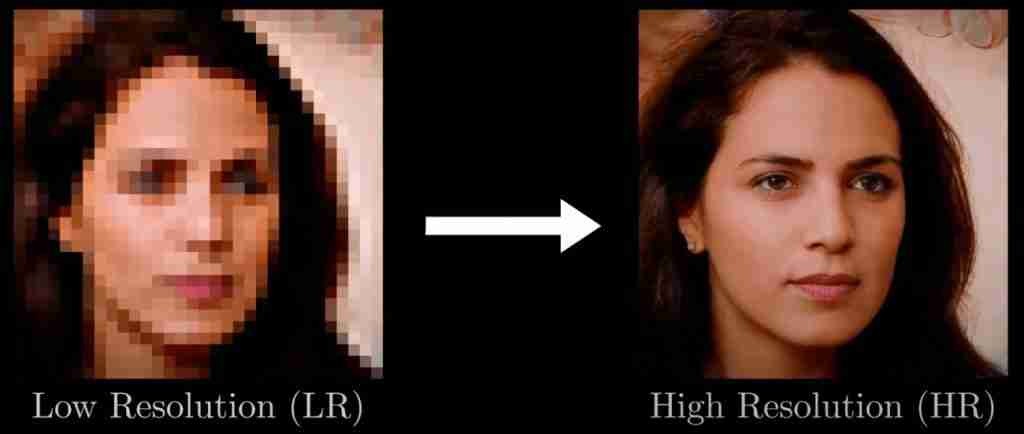
Image Resolution
Image resolution refers to the number of pixels contained within a unit of linear measurement in an image, typically measured in pixels per inch (ppi). For two images with the same print dimensions, a higher resolution image contains more pixels than a lower resolution one. E.g. an image with an area of 11 square inches, a resolution of 72 ppi means it contains 5,184 pixels (72 * 72 = 5,184).
High-resolution images use more pixels within a unit area, enabling them to produce more detailed and finer color transitions when printed compared to low-resolution images.
Monitor Resolution
Monitor resolution refers to the number of pixels or dots displayed per unit length on a monitor, usually measured in dots per inch (dpi). It is determined by the monitor size and its pixel settings. A typical resolution for PC monitors is 96 dpi.
3. Color Modes
When processing graphic images, each color mode has its own characteristics and applications. Users can choose a color mode based on production requirements. Below is an introduction to commonly used color modes:

RGB Color Mode
Most of the visible spectrum in nature can be represented by mixing red, green, and blue light in different proportions and intensities. The RGB model, also known as the additive color model, is typically used for lighting, video, and screen image editing.
CMYK Color Mode
The CMYK color mode is based on the light absorption characteristics of printing inks on paper. Each pixel in an image is composed of cyan (C), magenta (M), yellow (Y), and black (K) in varying proportions.
Each printing ink in a pixel is assigned a percentage value. Brighter areas (highlights) have lower ink percentage values, while darker areas (shadows) have higher percentages. In a CMYK image, when all four components are set to 0%, pure white is produced. Images in the CMYK color mode are the result of combining these four channels.
When creating images for printed output, the CMYK color mode should be used. Converting RGB images to CMYK for printing involves a process called color separation. If your source material is in RGB mode, it is best to complete all edits before converting to CMYK.
HSB Color Mode
The HSB color mode is designed based on how the human eye perceives colors, making it closely aligned with how people recognize colors in daily life.
H (Hue): Represents the type of color (e.g., red, green, blue).
S (Saturation): Represents the intensity or purity of the color.
B (Brightness): Represents the lightness or darkness of the color.
Lab Color Mode
The Lab color mode consists of a luminance component (L) and two chromatic components: a (green to red) and b (blue to yellow).
The Lab mode is device-independent, meaning the colors remain consistent regardless of the device used (e.g., monitor, printer, or scanner).This mode ensures consistent color reproduction across different devices.